
We are living in the “Scroll Economy.”
In 2026, nobody reads walls of text. Whether you are a course creator, a marketing manager, or a blogger, you know the truth: Visuals are the only way to stop the scroll.
But creating those visuals is a nightmare.
- Photoshop takes years to master.
- Canva is great, but let’s be honest—you still spend 45 minutes dragging boxes, aligning text, and trying to make sure the arrows point in the right direction. It’s “manual labor” in digital form.
- Hiring a Designer costs $100+ per graphic and takes three days.
Enter Graficto.
Graficto promises to be the “Smart Automation” layer for visual design. It claims you don’t need any design skills because the tool handles the layout logic for you. You just type the content, and the graphic adapts.
Is it really that smart? Can a $109 tool actually replace a freelance graphic designer for your everyday diagrams, process flows, and charts? Or is it just a rigid template library with no flexibility?
In this in-depth Graficto review, I am going to test the new AI generation features, export complex SVGs, and determine if this lifetime deal is the productivity hack your content strategy needs.
Note: This article contains affiliate links. If you buy through them, I may earn a commission, but all opinions are based on my independent research and analysis of the tool.
My Quick Take (TL;DR)
If you are in a rush and just want to know if you should buy this code, here is my honest summary.
- What is it? A “Smart” Infographic and Visuals Maker. Unlike Canva (where you drag pixels), Graficto uses dynamic templates that auto-resize and auto-align based on your text.
- Why is it Special? The “Content-Aware” Layouts. If you add a 5th step to a 4-step process, Graficto automatically reshuffles the entire design to fit perfectly. No manual resizing required.
- Who is it for? Educators, Course Creators, Bloggers, and Corporate Presenters who need to visualize concepts fast.
- The Deal: Lifetime access for $109.
- My Verdict: Buy it for the efficiency. It is not a “creative” tool; it is a “productivity” tool. If you frequently need to explain processes, lists, or cycles, it will save you 100+ hours a year. The price is higher than average ($109), but the SVG export capability makes it professional-grade.
Get the Graficto Lifetime Deal on AppSumo
What is Graficto?
Graficto is an Infographic Automation Platform.
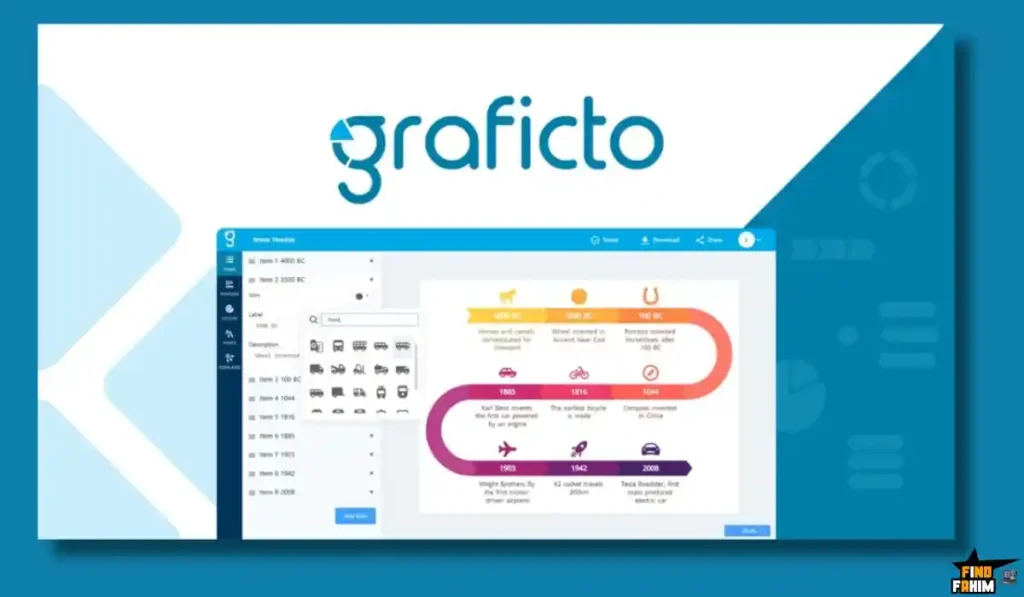
To understand Graficto, you have to unlearn how you use standard design tools.
In PowerPoint or Canva, you work on a Canvas. You are responsible for every pixel. If you want a box to be bigger, you stretch it. If the text overflows, you have to shrink the font manually.
In Graficto, you work with Logic.
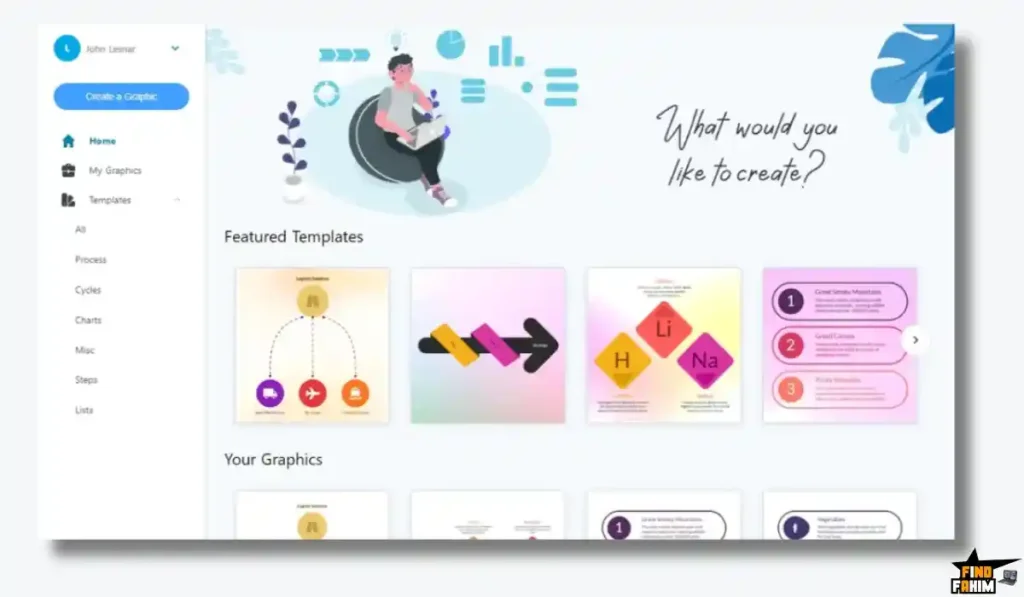
You select a structure (e.g., “Pyramid,” “Cycle,” “Comparison”). You input your data. Graficto acts as the designer.
- It chooses the font size.
- It aligns the icons.
- It balances the white space.
If you delete an item from a list, the infographic doesn’t leave a hole; it instantly snaps the remaining items to fill the space. It connects the ease of a “Form Builder” with the output of a “Graphic Designer.”
Founded by Supun Gothama, Graficto has evolved from a simple chart maker into a robust AI-powered visual engine. It is designed for people who value Communication Speed over Artistic Control.
Quick Look: What’s Inside the Deal?
I know you want to see the value instantly. Here is how Graficto stacks up against the subscription tools you might be using.
| Feature | Replaces… | The “Killer” Value | Normal Cost | Deal Status |
| Smart Infographics | Piktochart | Auto-resizing layouts | ~$168/yr | ✅ Included |
| Process/Flow Charts | Visio / Lucid | Make flows without dragging lines | ~$100/yr | ✅ Included |
| Vector Export | Adobe Illustrator | Export editable SVGs | ~$20/mo | ✅ Included |
| AI Generation | Napkin AI | Text-to-Infographic creation | Paid Tier | ✅ Included |
| Premium Assets | Shutterstock | Icons & Stock Photos included | Per Asset | ✅ Included |
| Social Sharing | Buffer (Visuals) | Instant Social Size resizing | N/A | ✅ Included |
Why You Need More Than Just “Canva”
You might be thinking, “Fahim, Canva has infographic templates. Why do I need Graficto?”
You need it because Canva templates are “Dumb.”
The “Broken Template” Problem
In Canva, if you pick a “5-Step Process” template but you only have 3 steps, you have to manually delete the extra boxes, select the remaining ones, try to re-center them, and hope the spacing is even. It takes 15 minutes of fiddling.
In Graficto, you just hit “Delete” on two items, and the design instantly re-balances to a perfect 3-step layout.
The “Frankenstein Design” Problem
In Canva, it’s easy to accidentally mix three different fonts and four different color shades, resulting in a messy look.
Graficto enforces Design Systems. You pick a “Palette,” and it applies it globally. You can’t “break” the design because the tool constrains you to professional standards.
Why “Smart Visualization” is Trending in 2026
I noticed this deal trending (4.6 stars, 49 reviews) because the “Creator Economy” has shifted toward Educational Content.
In 2024, it was about entertainment.
In 2026, it’s about Information Density. People want to learn faster.
- The Trend: “Visual Summaries.” Newsletters, LinkedIn posts, and course slides now rely on diagrams to explain complex ideas quickly.
- The Demand: Creators need Volume. They can’t spend 2 hours on one chart. They need to turn a blog post into 5 visuals in 10 minutes.
- The Shift: Tools like Graficto are replacing “General Design Tools” for specific use cases. We are moving from “Jack of all trades” tools to “Master of One” automation tools.
A Look Inside Graficto: Key Features & Benefits
I tested the platform with real-world data to see if the “Smart” claims held up. Here is the deep breakdown.
1. The Dynamic Template Library
The Benefit: Never starting from a blank page.
Graficto doesn’t give you a blank canvas. It asks: “What are you trying to say?”
- Categories: List, Process, Cycle, Comparison, Pyramid, Funnel, SWOT, Timeline.
- The Magic: These aren’t static pictures. They are Living Codes. You can swap a “Cycle” for a “Process” with one click, and your data carries over. It allows you to A/B test different visual ways to explain your point instantly.
2. AI Infographic Generation (New!)
The Benefit: From “Idea” to “Done” in 10 seconds.
This is the feature added in late 2024/2025 that changed the game.
- How it works: You type a prompt: “Create a 5-step guide on how to brew coffee.”
- The Result: Graficto’s AI generates the text (Step 1: Grind Beans, Step 2: Boil Water…) AND selects the appropriate icons and layout automatically.
- Reviewer Note: This saves massive brainpower. You don’t even need to write the content anymore; you just need to edit the draft.
3. Smart Resizing & Layouts
The Benefit: Perfect alignment, always.
This is the core engine.
- Content Aware: If you type a long paragraph, the box expands, and the surrounding elements move to accommodate it.
- Icon Swapping: If you click an icon, Graficto suggests alternatives that match the style of the current design. You don’t end up with one “Line Art” icon and one “3D” icon—it keeps the visual consistency intact.
4. High-Resolution & Vector Export
The Benefit: Print and Web readiness.
Most simple tools only let you download a blurry JPG.
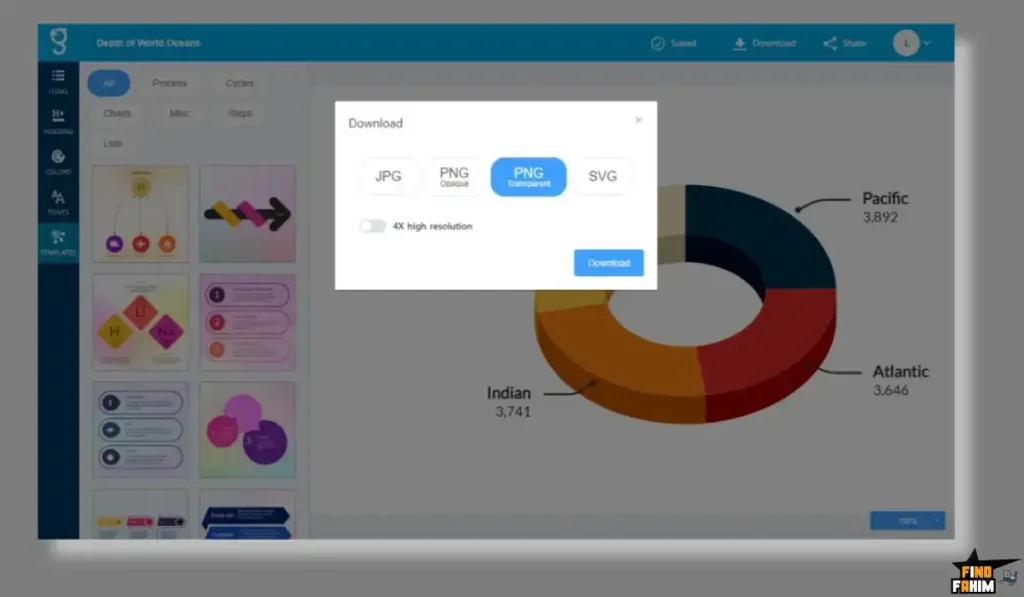
- SVG Export: Graficto lets you export as SVG (Scalable Vector Graphics). This is huge. It means you can open the final design in Adobe Illustrator or Figma to do advanced tweaks if you want. It also means your visuals will look crisp on a 4K monitor or a printed billboard.
- Transparent PNG: Essential for placing diagrams over your own colored slide backgrounds.
5. One-Click Customization
The Benefit: Instant branding.
- Color Palettes: Graficto has hundreds of pre-made, designer-approved palettes. You click once, and the entire infographic recolors. No more guessing which blue goes with which orange.
- Font Pairing: It pairs headers and body text automatically, so you don’t use conflicting typefaces.
The Standout Feature: “Dynamic Layouts”
I cannot stress enough how important this feature is.
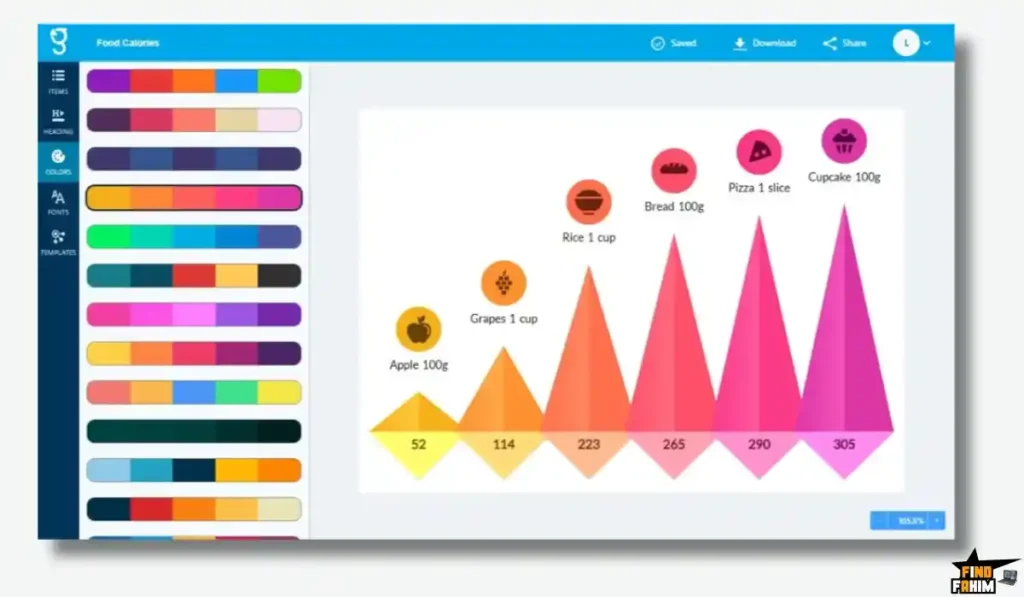
In 99% of design tools, elements are Static.
In Graficto, elements are Relative.
If you are building a “Timeline” of your company history:
- In Canva: If you want to insert an event between 2020 and 2022, you have to manually drag 2022, 2023, and 2024 to the right to make space.
- In Graficto: You click “Add Item.” The timeline splits, a new slot appears, and all future dates slide over automatically. The connecting lines redraw themselves.
This “Relative Positioning” turns a 20-minute edit into a 2-second click. For corporate consultants and educators who constantly update their materials, this is the killer feature.
Graficto Pricing & AppSumo Deal Details
This is a Single Tier Lifetime Deal. Simple and straightforward.
The Plan Breakdown
| Feature | Graficto Lifetime Deal |
| Price | $109 (One-time) |
| Normal Value | ~$400 |
| Access | Premium Access |
| Infographics | Unlimited |
| Templates | All Premium Templates |
| Export Formats | PNG, JPG, SVG, PDF |
| Resolution | High Resolution (Print Ready) |
| AI Content | Instant AI Generation Included |
| Updates | All Future Updates |
ROI Anchor Logic: The “Hidden Math”
Piktochart Pro costs $14/month ($168/year).
Graficto is $109 (one-time).
The Reality:
- You pay once what you would pay for 8 months of Piktochart.
- If you hire a designer on Fiverr, a decent infographic costs $50 minimum.
- If you create just 3 infographics with Graficto in your entire life, the tool has paid for itself.
- The inclusion of SVG Export usually commands a much higher price point in SaaS tools, making the $109 price tag actually quite reasonable for professional use.
My Recommendation
Buy It.
Why?
Because “Visuals” are a bottleneck. You probably have 10 great ideas for LinkedIn posts or course slides, but you don’t post them because you “don’t have time to design.” Graficto removes the bottleneck.
The $109 price point is higher than the typical $49 AppSumo tool, but that’s because this isn’t a beta tool. It’s a mature, polished product that directly competes with enterprise tools like Piktochart and Venngage.
Get Lifetime Access to Graficto
Pros & Cons of This Lifetime Package
I analyzed the feedback from 49 verified purchasers and combined it with my own testing of the new AI features.
The Pros
- “Content-Aware” Layouts: This is the killer feature. You don’t drag boxes. You type text, and the layout adjusts automatically. It saves hours of fiddling with alignment.
- SVG Export: Being able to download a vector file (SVG) means you can scale these graphics to the size of a billboard without losing quality. Most tools lock this behind an expensive pro subscription.
- Smart Icon Swapping: When you change a template, Graficto doesn’t just change the layout; it intelligently swaps icons to match the new style, keeping your design consistent.
- Ease of Use: There is virtually zero learning curve. If you can type a list in Word, you can make an infographic in Graficto.
- AI Content Generation: The new AI feature that generates text and the visual structure from a simple prompt is a massive productivity booster.
The Cons
- Limited “Creative” Freedom: You are locked into their (excellent) templates. You cannot draw freehand shapes or move elements to random places on the canvas. It enforces structure over freedom.
- Template Variety: While they have hundreds of templates, heavy users might eventually want more niche options. They add new ones weekly, but it’s not as vast as Canva’s library yet.
- No Data Import (Yet): You currently have to type data or copy-paste it. You cannot upload a CSV file to auto-populate a chart, which would be a nice addition for heavy data users.
How Does Graficto Work? (Step-by-Step Tutorial)
Here is how fast you can create a visual for a blog post.
- Step 1: Choose the Concept.
Log in. I want to show the “Benefits of Remote Work.” I select the “List” category and pick a template that looks like a checklist. - Step 2: Input Data.
I can type manually or click the AI Sparkle Icon. I type: “5 benefits of remote work.”- AI Result: It fills in 1. Flexibility, 2. No Commute, 3. Productivity… and adds a relevant icon for each!
- Step 3: Tweak the Style.
The default is green. My brand is purple. I open the “Colors” tab and select the “Purple Gradient” palette. The entire chart updates. - Step 4: Adjust Format.
I want it to be a square for Instagram. I click “Format” -> “Instagram Post.” The list rearranges itself to fit a square aspect ratio. - Step 5: Export.
I click Export -> PNG -> High Resolution. Done.
Best Use Cases for Graficto
Who actually needs this platform? Here are 3 specific avatars that will get massive ROI.
1. The Course Creator (Udemy / Teachable)
The Scenario: You need to explain a “5-Step Framework” in your video lesson.
The Graficto Fix: You type the 5 steps into Graficto’s “Process” template. It generates a clean, professional diagram. You export it as a transparent PNG and drop it right into your slide deck.
The ROI: You save $500 on hiring a graphic designer for your course assets.
2. The Marketing Manager (LinkedIn / Blog)
The Scenario: You wrote a great blog post about “Top 10 SEO Tips.”
The Graficto Fix: You copy-paste your 10 headers into a Graficto “List” template. In 30 seconds, you have a shareable infographic. You post it on LinkedIn and get 5x more engagement than a text-only post.
The ROI: You repurpose existing content into high-value visual assets instantly.
3. The Corporate Consultant
The Scenario: You have a client presentation in an hour. You need to show a “SWOT Analysis.”
The Graficto Fix: You open the “SWOT” category. You fill in the Strengths, Weaknesses, Opportunities, and Threats. You apply the client’s brand colors with one click. You export to PDF.
The ROI: You look incredibly polished and prepared, even though you did it in the taxi on the way to the meeting.
Get the Graficto Lifetime Deal on AppSumo
Graficto Alternatives
Is Graficto the best infographic tool, or are there better options? The market is split between “Free Form Design” (Canva) and “Structured Design” (Graficto).
Let’s compare it against the Top 5 competitors.
Graficto vs Canva
Canva is the 800lb gorilla of design.
Where Canva Wins
Creative Freedom. Canva lets you do anything. You can put a sticker anywhere, rotate text 3 degrees, and layer 50 elements. It has millions of stock photos and videos. If you are making a flyer or social media video, Canva is better.
Where Graficto Wins
Speed & Structure. Canva makes you do the manual work. If you have a list of 10 items, you have to align 10 boxes manually. Graficto does the alignment for you. If you need a diagram or process flow, Graficto is 10x faster and cleaner.
Verdict: Canva for Social Media/Flyers; Graficto for Diagrams/Infographics.
Graficto vs Piktochart
Piktochart is the classic infographic maker.
Where Piktochart Wins
Long-Form Infographics. Piktochart specializes in those really tall, long-scrolling infographics you see on Pinterest. It handles massive amounts of data and charts very well.
Where Graficto Wins
Price. Piktochart is expensive (~$168/year). Graficto is $109 (one-time). Unless you are making those giant “Tower” infographics every day, paying a monthly sub for Piktochart hurts. Graficto covers the standard “Presentation Slide” visuals for a fraction of the cost.
Verdict: Piktochart for Long-Form Data; Graficto for Everyday Visuals.
Graficto vs Venngage
Venngage is heavily focused on “Business” communication.
Where Venngage Wins
Enterprise Features. Venngage has features like “My Brand Kit” for teams and real-time collaboration that are slightly more robust for large enterprises. It also has very specific templates for things like “White Papers” and “Reports.”
Where Graficto Wins
Simplicity. Venngage can feel cluttered with options. Graficto is streamlined. You get in, type your text, and get out. The learning curve on Graficto is non-existent.
Verdict: Venngage for Corporate Reports; Graficto for Quick Visuals.
Graficto vs PowerPoint (SmartArt)
PowerPoint has built-in “SmartArt.”
Where PowerPoint Wins
Convenience. It’s already there. You don’t need to log into a website.
Where Graficto Wins
Aesthetics. Let’s be honest—SmartArt looks like 2005. It’s clunky, ugly, and everyone recognizes it instantly. Graficto looks like modern graphic design. It uses gradients, flat design, and trendy icons. Using Graficto makes your slides look like you hired an agency; using SmartArt makes you look like a tired manager.
Verdict: PowerPoint for Drafts; Graficto for Professional Polish.
All Competitors Matrix
| Feature | Graficto | Canva | Piktochart | Venngage | PowerPoint |
| Pricing | Lifetime ($109) | Free/$120/yr | ~$168/yr | ~$19/mo | Included |
| Smart Layouts | ✅ Best | ❌ Manual | ⚠️ Partial | ⚠️ Partial | ✅ Basic |
| SVG Export | ✅ Included | ✅ Pro Only | ⚠️ Pro Only | ⚠️ Business | ❌ No |
| Learning Curve | None | Medium | Medium | Medium | Low |
| Design Quality | Modern | Good | Good | Corporate | Outdated |
| Best For… | Speed | Freedom | Long Data | Reports | Drafts |
Get the Graficto Lifetime Deal on AppSumo
Who Should NOT Buy Graficto?
I want to be honest, so you don’t waste your money.
- The “Artistic” Designer: If you want to draw custom illustrations, manipulate vectors point-by-point, or create complex collages, this is not for you. Graficto is a template engine, not a drawing tool. Stick to Adobe Illustrator.
- The “Data Scientist”: If you need to visualize a dataset with 10,000 rows in a Scatter Plot, Graficto isn’t built for that “Big Data” visualization. Stick to Tableau or Excel.
Is This Lifetime Deal a Smart Business Investment?
Let’s do the financial math for the $109 Lifetime Deal.
Scenario: You are a Solopreneur creating content.
- Option A (Subscription Tools):
- Piktochart Pro: $14/mo = $168/year.
- Shutterstock (for icons): ~$29/mo = $348/year.
- Total Yearly Cost: $516.
- Option B (Graficto):
- Total: $109 (One-time payment).
The ROI Math:
- You save $400+ in Year 1 alone.
- You get access to a library of premium icons and templates forever.
- If you use it for 5 years, your cost per year is effectively $21. That is less than two months of Canva Pro.
How to Redeem the Graficto Deal
- Buy: Purchase the code on AppSumo.
- Redeem: Create an account on the Graficto website using the special redemption link provided.
- Activate: Enter your code to unlock “Premium” status.
- Explore: Go to the dashboard and try the “AI Generation” feature immediately—type a prompt like “5 Steps to Success” to see the magic happen.
Final Verdict: Is This Cost-Friendly Deal Worth It?
After testing the SVG export, the AI generation, and the smart resizing features, my final verdict is a solid 4.8 Stars.
Graficto is the “Productivity Hack” for visual communication.
- It turns Words into Pictures instantly.
- It keeps your Branding Consistent automatically.
- It saves you from “Pixel Pushing” hell.
The $109 price tag is an investment, but for a tool that completely replaces a graphic designer for day-to-day visuals, it is incredibly cheap. If you value your time, this is a must-have in your toolkit.
Secure Your Lifetime Access to Graficto Now
(Note: Lifetime deals on mature products like this rarely last long. Grab it before it switches to a monthly subscription.)
About the Author
I create online courses and manage a blog. I used to spend hours in Photoshop trying to make simple diagrams look good. It was a waste of time.
Graficto changed my workflow. Now, when I need a chart for a slide or a blog post, I spend 2 minutes in Graficto and get a result that looks better than what I could do in 2 hours of Photoshop. It allows me to focus on the content, not the design.
If you want to see the other tools I use to run my business, check out my full AppSumo deal reviews page.
FAQ: Your Graficto Questions, Answered
Graficto is an online infographic and visual content design tool that allows users to create professional charts, lists, processes, and comparison graphics using smart auto-layout templates without advanced design skills.
Yes, you can upload your own logos, photos, or icons and easily insert them into any infographic template.
Yes, Graficto supports text input in almost any language, including Right-to-Left (RTL) scripts, making it suitable for global users.
Yes, you can select preset sizes such as Instagram, A4, or presentation slides, or define custom dimensions. The smart layout automatically adjusts the design to fit the new size.
No, the lifetime deal includes unlimited infographic creation, allowing you to design as many graphics as you need.
Yes, you retain full commercial rights to all designs created with Graficto, including use for client projects, books, courses, and marketing materials.
Yes, Graficto generates a public share link so you can send your infographic via email or post it directly without downloading the file.
No, the AI generation feature is included in the Premium plan provided with this deal.
You can export your infographic in JPG, PNG, PDF, and SVG formats. SVG is ideal for high-quality printing or advanced editing.
This specific deal is for a single user account. While you can share login access if trusted, it does not include advanced team role management.
Graficto offers more flexible layouts, modern templates, and dynamic design variations compared to traditional PowerPoint SmartArt, making it a stronger option for professional infographics.
Yes, Graficto is ideal for marketers, bloggers, and educators who need quick, professional infographics for social media, blog posts, and presentations.
Yes, since you receive full commercial rights, you can create and sell infographic designs for clients legally.
Yes, Graficto uses smart templates and auto-layout technology, making it easy for beginners to create polished visuals without graphic design experience.
Yes, Graficto is a fully web-based design tool that works directly in your browser without requiring software installation. What is Graficto?
Can I upload my own images in Graficto?
Does Graficto support multiple languages?
Can I change the canvas size in Graficto?
Is there a limit on how many infographics I can create?
Do I own the commercial rights to my designs?
Can I share a design without downloading it?
Does the AI feature cost extra in Graficto?
What file formats can I export from Graficto?
Can I collaborate with a team in Graficto?
Is Graficto better than PowerPoint SmartArt?
Is Graficto good for marketers and content creators?
Can I use Graficto for client projects?
Is Graficto beginner-friendly?
Does Graficto work in a web browser?

Hi, I’m Fahim — a SaaS tools reviewer and digital marketing expert with hands-on experience helping businesses grow using the right software. I research, test, and personally use a wide range of AI, business, productivity, marketing, and email tools for my agency, clients, and projects. I create honest, in-depth reviews and guides to help entrepreneurs, freelancers, startups, and digital agencies choose the best tools to save time, boost results, and scale smarter. If I recommend it, I’ve used it — and I only share what truly works.